
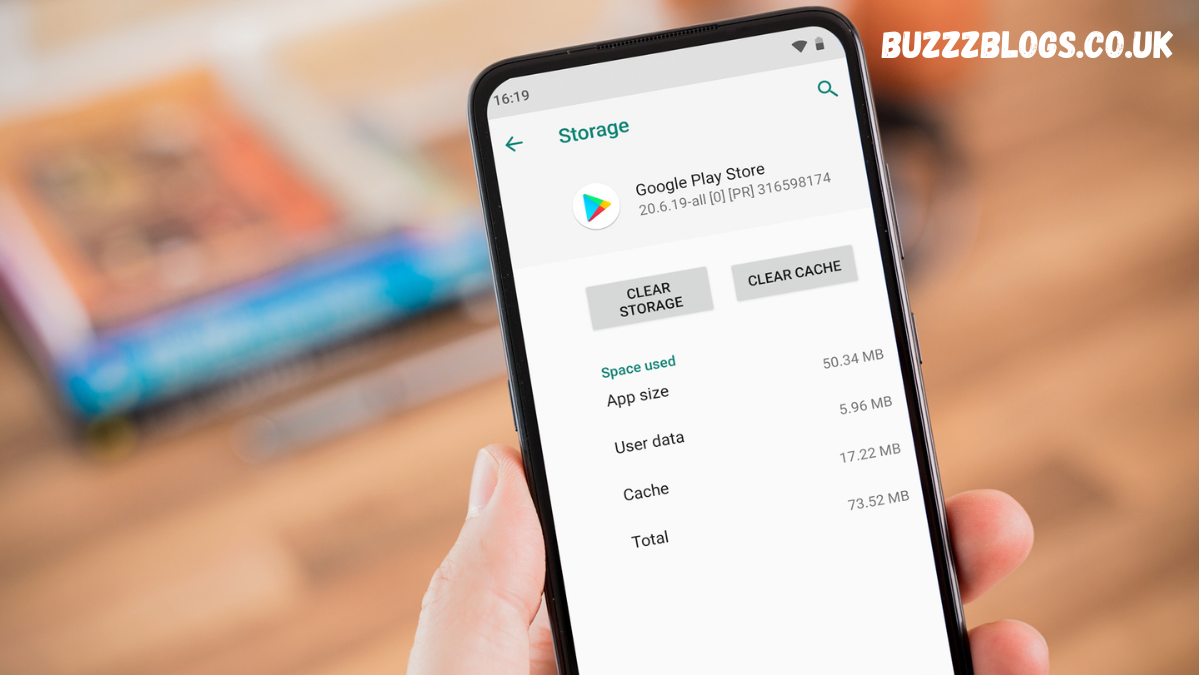
If your phone has started feeling sluggish, apps are crashing for no clear reason, or storage space is mysteriously disappearing, you’re not alone. Android devices are powerful, but like any system that runs apps and stores temporary data, they need occasional maintenance. One of the simplest and most effective ways to keep your device running smoothly is learning how to clear cache on android.
Cache files are designed to make your phone faster. They store temporary data so apps can load quickly the next time you open them. Over time, though, these files can pile up, become outdated, or even get corrupted. When that happens, they can cause performance issues instead of solving them. In this complete guide, I’ll walk you through everything you need to know about managing cache safely and effectively, step by step.
How to Clear Cache on Android Without Losing Important Data
Understanding how to clear cache on android properly ensures you do not accidentally delete personal files, photos, or essential app data. Many people worry that clearing cache will erase messages, login details, or saved progress. The good news is that clearing cache removes only temporary files, not your personal information.
When you clear cache, you’re simply removing stored background data that apps use to load faster. Your photos, contacts, messages, and documents remain untouched. The only thing you may notice is that certain apps take a little longer to open the next time you use them, since they need to rebuild fresh cache files. That small delay is completely normal and often improves performance in the long run.

How to Clear Cache on Android for Individual Apps
Sometimes a specific app starts misbehaving. Maybe it keeps freezing, crashing, or refusing to load content properly. In cases like this, it’s smarter to clear cache for that particular app rather than wiping temporary files across your entire device.
To clear cache for a single app, open Settings and go to Apps or App Management. Select the app that is causing trouble. Tap on Storage, then choose Clear Cache. Within seconds, those temporary files will be removed. This approach is especially useful for social media apps, browsers, and streaming platforms, which tend to accumulate large cache files over time.
If the issue continues after clearing cache, you might consider clearing storage, but be careful. Clearing storage deletes app data, including login credentials and preferences. For most performance problems, clearing cache alone is more than enough.
How to Clear Cache on Android Using System Settings
Android has evolved over time, and modern versions no longer provide a single button that clears all app cache at once. Instead, the system encourages users to manage cache on an app-by-app basis. This may seem inconvenient, but it gives you more control and prevents accidental data loss.
To manage cache through system settings, navigate to Settings, then Storage. From there, you can view how much space apps are consuming. Tap on Apps to review storage usage individually. Clearing cache from this area is safe and does not impact system stability. It simply frees up temporary space that apps have reserved for performance optimization.
On some devices, especially those running customized Android versions from manufacturers, you may also find a Device Care or Storage Cleaner feature. These built-in tools can help identify junk files, including cache data, and remove them safely.
What Is Cache and Why Does Android Store It?
Cache is temporary data stored by apps and the operating system to speed up performance. When you open a website in your browser, for example, images and layout elements are stored locally. The next time you visit that website, it loads faster because your phone doesn’t need to download everything again.
Similarly, apps store thumbnails, login sessions, and frequently accessed information in cache. This reduces load times and improves user experience. Without cache, every action would require fresh data retrieval from servers, which would slow everything down.
However, cache is meant to be temporary. When it becomes too large or outdated, it can slow your phone instead of speeding it up. That’s why understanding how to manage and clear cache responsibly is essential for maintaining peak performance.
Signs You Should Clear Cache on Your Device
Not every slow moment means you need to clear cache. However, certain warning signs suggest it might be time. If apps frequently crash or freeze, corrupted cache files may be the culprit. Similarly, if an app displays outdated content or fails to sync properly, clearing cache often resolves the issue.
Another common sign is storage warnings. If your phone says you’re running out of space but you haven’t installed many new apps, accumulated cache data could be consuming hidden storage. Clearing it can instantly free up space without deleting personal files.
Battery drain can also sometimes be linked to problematic cache files. Apps struggling with corrupted temporary data may work harder in the background, which affects battery performance.
Clearing Browser Cache on Android
Browsers like Chrome store a significant amount of temporary data. This helps websites load faster, but over time it can take up considerable storage. Clearing browser cache is especially helpful if websites are loading incorrectly or showing outdated content.
Open your browser, go to Settings, then Privacy or History. Choose Clear Browsing Data and select Cached Images and Files. Make sure you do not select options like saved passwords unless you truly want to remove them. Once cleared, your browser will function more smoothly and may even resolve loading errors.
It’s generally a good idea to clear browser cache occasionally, especially if you browse frequently or visit media-heavy websites.
Is It Safe to Clear Cache Regularly?
Clearing cache is completely safe. In fact, it’s a healthy maintenance habit for Android users. However, it does not need to be done daily. Cache is beneficial when functioning properly, so removing it too frequently can slightly reduce performance benefits.
For most users, clearing cache once every few weeks or when experiencing issues is more than enough. If you frequently install and uninstall apps, you might want to check storage settings occasionally to remove leftover temporary data.
Think of cache like temporary workspace clutter. A little is helpful. Too much becomes messy.
Difference Between Clear Cache and Clear Data
Many people confuse these two options. Clearing cache removes temporary files. Clearing data resets the app to its original state, as if you just installed it.
When you clear data, you remove login information, preferences, and saved settings. This is useful only when an app is severely malfunctioning. For everyday performance issues, clearing cache is the safer and smarter first step.
Always start with clearing cache before taking more drastic measures. It solves most problems without affecting your personal information.
Using Recovery Mode to Wipe Cache Partition
Advanced users may choose to wipe the cache partition using recovery mode. This clears system-level temporary files rather than individual app cache. It does not delete personal data, but the process requires restarting your phone in recovery mode.
The steps vary depending on your device manufacturer. Generally, you power off the device and hold a combination of volume and power buttons to access recovery options. From there, select wipe cache partition.
This method is useful after major software updates, as leftover system cache can sometimes cause performance glitches. However, if you’re not comfortable navigating recovery mode, managing cache through settings is perfectly sufficient.
Does Clearing Cache Improve Speed?
In many cases, yes. When cache becomes bloated or corrupted, it can slow apps down. Clearing it forces the app to rebuild fresh, optimized temporary files.
However, clearing cache is not a magic solution for all performance issues. If your phone is very old, has limited RAM, or is overloaded with background apps, you may need additional optimization steps. Still, clearing cache is one of the simplest and most effective starting points.
Common Myths About Clearing Cache
One common myth is that clearing cache damages your phone. That is false. Cache is temporary by design. Removing it does not harm the system.
Another misconception is that clearing cache dramatically increases storage permanently. While it can free up space immediately, apps will gradually build new cache files as you continue using them.
Understanding these myths helps you approach cache management confidently rather than fearfully.
Final Thoughts
Learning how to clear cache on android is a simple yet powerful skill. It improves performance, resolves app issues, and frees up storage without risking your personal data. Whether you clear cache for individual apps or manage system storage more broadly, the process is safe and beginner-friendly.
Regular maintenance keeps your device running smoothly. You don’t need advanced tools or technical expertise. Just a few taps in settings can make a noticeable difference in speed and stability.
FAQs
Does clearing cache delete photos?
No, clearing cache does not delete personal files like photos, videos, or documents.
How often should I clear cache?
Only when necessary or every few weeks if you notice performance issues.
Will clearing cache log me out of apps?
No, clearing cache does not remove login details. Clearing data does.
Can clearing cache fix app crashes?
Yes, it often resolves crashes caused by corrupted temporary files.
Is it safe to use third-party cleaning apps?
It is generally safer to use built-in Android tools rather than third-party apps.